
Introduction
Netbeans is my favorite IDE for PHP/Magento development. And one of the great feature provided by Netbeans is Macros
Here I will share some tips on how to leverage the power of Macros for Magento templating.
Importing Macros
1. Download the Macros zip file from [here]
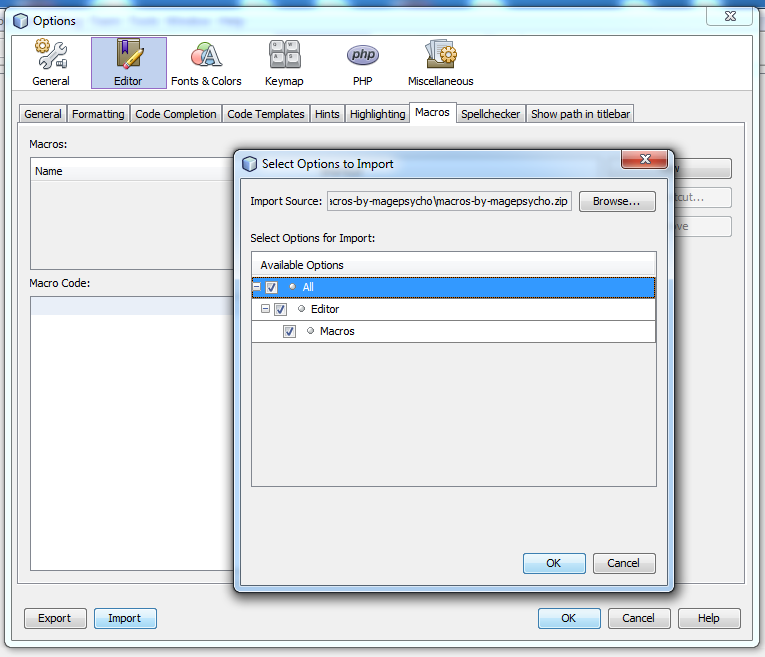
2. Open Netbeans IDE. Go to the menu:
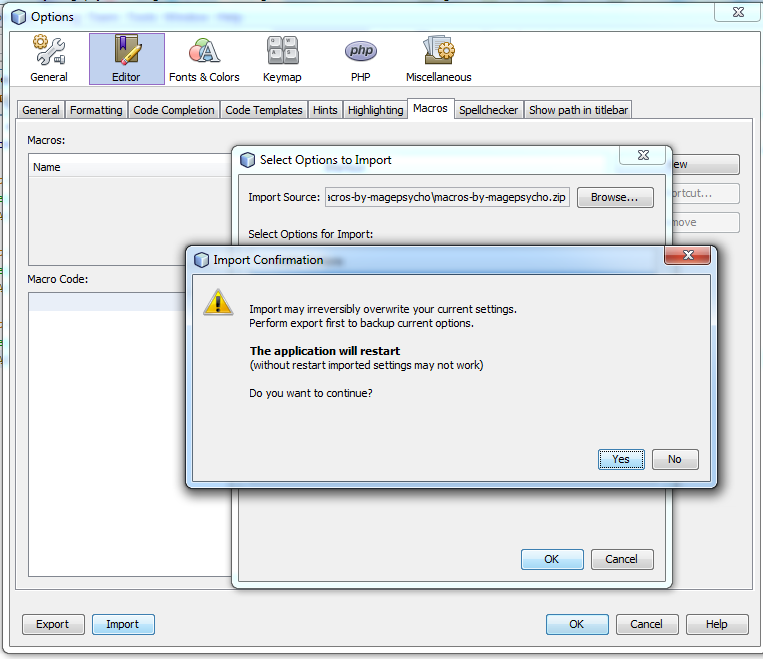
Tools > Options > Editor > Macros > press ‘Import’ button located at the bottom > Locate the zip file downloaded from above > Check all checkboxes > press ‘OK’ > restart application
3. That’s all
[Related Snapshots]
Using Macros
After importing Macros in Netbeans, you can use it for the following cases:
1. Text/Label Translation:
When you are using label/text in template(.phtml) files, it is always recommended to wrap up label/text string as:
<?php echo $this->__('Label or Text goes here...') ?>in order to make it multi-lingual friendly.
In order to use Macro for this case:
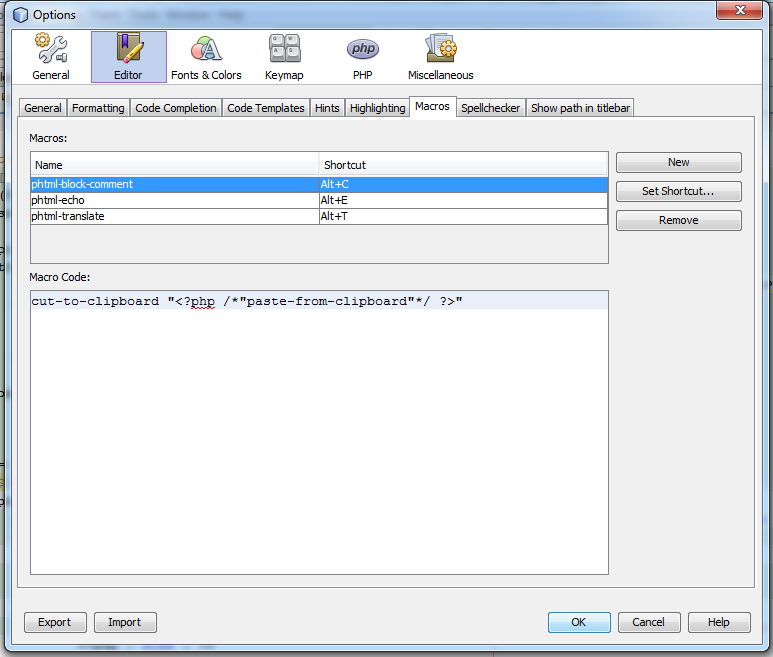
Select the label/text which you want to translate and press: [Alt] + T.
This shortcut will auto prepend: <?php echo $this->__(' and append: ') ?> code for you and hence reducing the no of codes. Isn’t that cool?
2. Output PHP Variables:
In order to an output variable in the template file, you need to add php opening & closing tags which makes a simple echo code a bit lengthier. For example:
<?php echo $someVariable ?>In order to use Macro for this case:
Select the variable which you want to echo and press: [Alt] + E.
It will auto prepend: <?php echo and append: ?> code for you.
3. Commenting div blocks:
When you want to remove the unwanted html divs from template files, it is better to use php block comment (<?php /* … */ ?>) instead of html comment(<!– … –>)
In order to use Macro for this case:
Select the div block which you want to comment and press: [Alt] + C.
It will auto prepend: <?php /* and append: */ ?> and hence div block content will be commented out.
Notes: You can edit the shortcut by going to: Tools > Options > Editor > Macros > Select Macro > click ‘Set Shortcut’
These were some Tips & Tricks on using Netbeans Macros effectively in order to reduce the amount of code and making your Magento templating life bit easier.
I request my beloved readers to share their favorite Macros which can help others to automate the coding to some extent.
Thanks for reading & sharing!